When your website goes down, your backups are the only thing standing between you and lost revenue, lost rankings, and permanent long-term damage to your business.
And in 2026, website outages are more common than ever due to:
- Plugin conflicts
- Server failures
- Malware attacks
- Hacked hosting accounts
- Theme/WordPress update errors
- Human mistakes
If you don’t have a complete, automated, offsite backup system, your business is at risk every day.
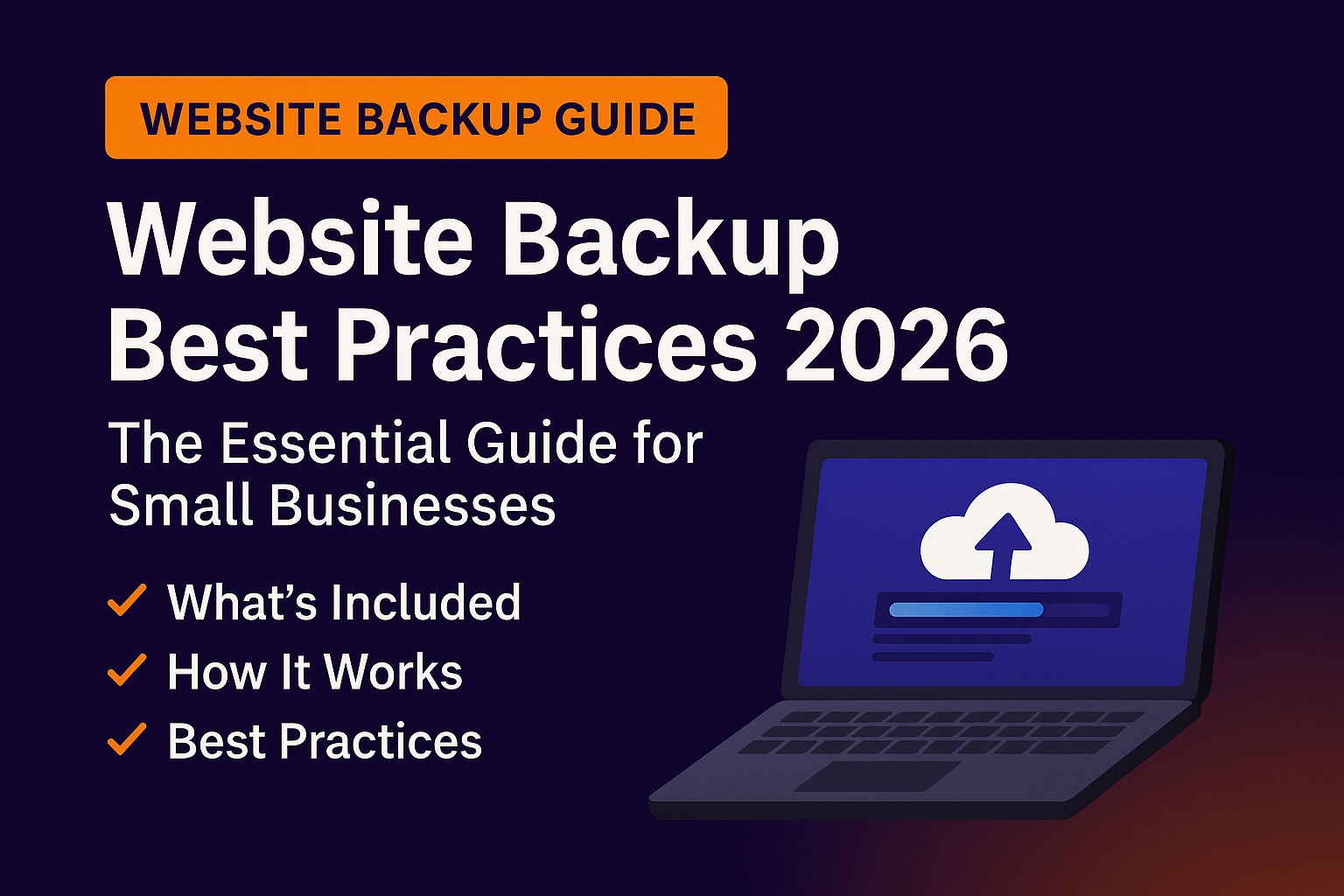
This guide gives you the Website Backup Best Practices 2026 framework used by top agencies, enterprise environments, and fast-growing brands — so you can protect your website, avoid downtime, and restore your site in minutes instead of days.
Why Website Backup Best Practices 2026 Matter
The Pain:
Most businesses believe their hosting company automatically handles backups for them. They don’t.
Most hosts:
- Only keep 1–7 days of backups
- Do not guarantee successful restores
- Do not provide offsite copies
- Do not protect you from update failures
- Do not test if backups actually work
One broken update can wipe out an entire site.
The Solution:
Follow the 2026 backup framework:
- Daily automated backups
- Offsite storage
- Full site + database backups
- 30–180 days of history
- Monthly restore testing
- 1-click restoration
This is your safety net — don’t operate without one.
Website Backup Best Practices 2026
1. Automate All Backups
Problem: Manual backups fail because people forget.
Fix: Use automated daily backups with tools like:
- UpdraftPlus
- BlogVault
- JetBackup
- CodeGuard
2. Always Store Backups Offsite
Problem: Backups stored on the same server die when the server crashes.
Fix: Store backups in:
- AWS S3
- Google Cloud
- Dropbox Business
- Dedicated offsite servers
3. Back Up Website Files AND Database
Problem: Many businesses back up only one.
Fix: Back up both:
- WordPress files (themes, plugins, uploads)
- Database (content, settings, users)
4. Maintain Versioned Backup History
Problem: You can’t undo malware or corruption without older restore points.
Fix: Keep 30–180 days of backup history.
5. Test Your Backups Regularly
Problem: 40% of backups are corrupted or unusable.
Fix: Test restores monthly using a staging environment.
6. Back Up Before Every Update
Problem: Updates break websites frequently.
Fix: Always run a backup before updating WordPress core, plugins, or themes.
7. Encrypt Sensitive Backup Files
Problem: Backups often contain private data.
Fix: Encrypt backups in transfer (SSL) and at rest.
8. Use a 1-Click Restore System
Problem: Manual restores are slow and technical.
Fix: Use platforms with instant rollback features.
Proof That Backups Matter
- 30,000 websites are hacked daily
- 43% of restore attempts fail due to corrupted backups
- 67% of small businesses experience downtime annually
- Downtime costs small businesses an average of $427/minute
- Sites with reliable backups recover 90% faster
Source: WCAG/W3C Web Security — https://www.w3.org/WAI/standards-guidelines/wcag/
What’s Included in a Professional Backup System
- Automated daily backups
- Offsite cloud storage
- 30–180 days of restore history
- Full database + file backups
- Backup encryption
- Malware-safe versioning
- 1-click restoration
- Backup monitoring and reporting
- Monthly restore testing
Website Backup Pricing
Basic Plan — $29/mo
Daily backups + 30-day retention.
Advanced Backup & Restore — $79/mo
Offsite storage + 90-day retention + restoration assistance.
Full Disaster Recovery Plan — $149/mo
Complete backup system + malware rollback + backup testing + staging environment.
DIY vs Professional Backup Systems
| Feature | DIY | The Clay Media |
|---|---|---|
| Automated backups | ✔ | ✔ |
| Offsite storage | ❌ | ✔ |
| 90–180 days history | ❌ | ✔ |
| Backup testing | ❌ | ✔ |
| Staging restore | ❌ | ✔ |
| Security checks | ❌ | ✔ |
| Disaster recovery | ❌ | ✔ |
How to Choose the Right Plan
Choose based on:
- How often your site changes
- How mission-critical your leads/sales are
- Your tolerance for downtime
- Your ability to self-restore
Most small businesses should choose the Advanced or Full Disaster Recovery plan.
Real Example
A client site crashed after a plugin update corrupted the database.
Without backups: downtime for 3–5 days, full rebuild needed.
With our backup system:
- Restored in 4 minutes
- No lost content
- No SEO impact
- No leads missed
Backups saved the entire business week.
Local Relevance
Website backup and disaster recovery services available in:
- Orange County
- Irvine
- Huntington Beach
- Newport Beach
- Costa Mesa
- Anaheim
…and nationwide.
FAQ
How often should I back up my website?
Daily for most sites.
Do hosting providers handle backups?
Not reliably — and rarely offsite.
How long should backups be kept?
30–90 days minimum.
Can you restore any broken site?
Yes — if backups exist.
Your website is always one update, one malware attack, or one server crash away from going offline.
A proper backup system is the difference between a minor inconvenience and a major business disaster.
👉 Book your FREE Website Backup Audit:
📞 949-444-2001
📧 Team@theclaymedia.com
📍 Orange County, CA
We’ll audit your current backup system, identify gaps, and give you a complete protection and restoration plan for 2026.