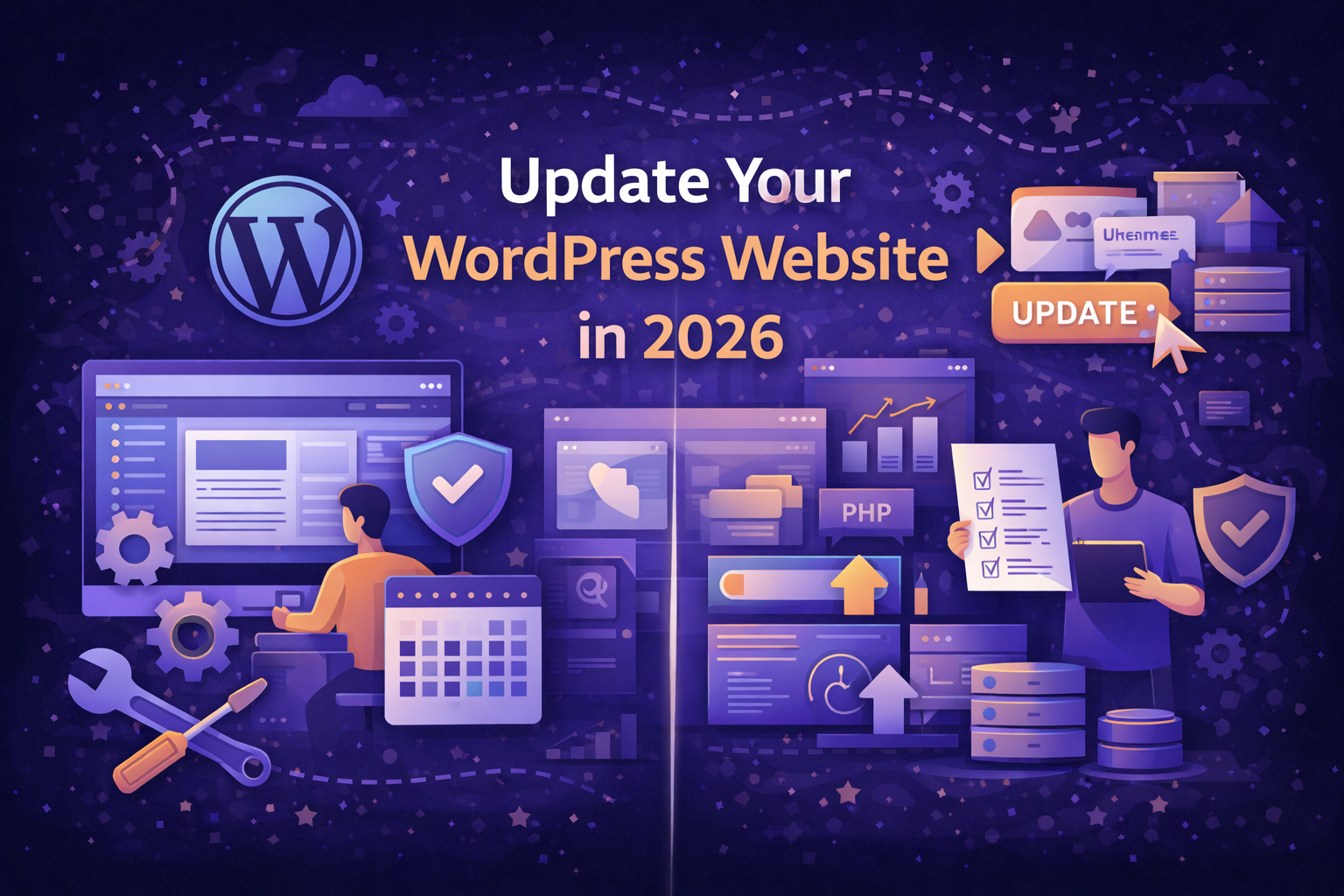
TL;DR — Update WordPress Website in 2026
- Regular updates keep your WordPress site secure, fast, and ranking well
- Content updates include: blog posts, pages, images, and media
- Technical updates include: WordPress core, themes, plugins, and PHP
- Back up before updating — always have a restore point
- Most content updates take 5-10 minutes once you know the process
- Consider a maintenance retainer if updates feel overwhelming
👉 Related: Website Retainer Services 2026
Table of Contents
- Why Regular Updates Matter
- How to Update Blog Posts
- How to Update Pages
- How to Update Images and Media
- How to Update WordPress Core
- How to Update Plugins
- How to Update Themes
- Backup Before Updates
- Update Schedule Best Practices
- FAQ
Why Regular Updates Matter
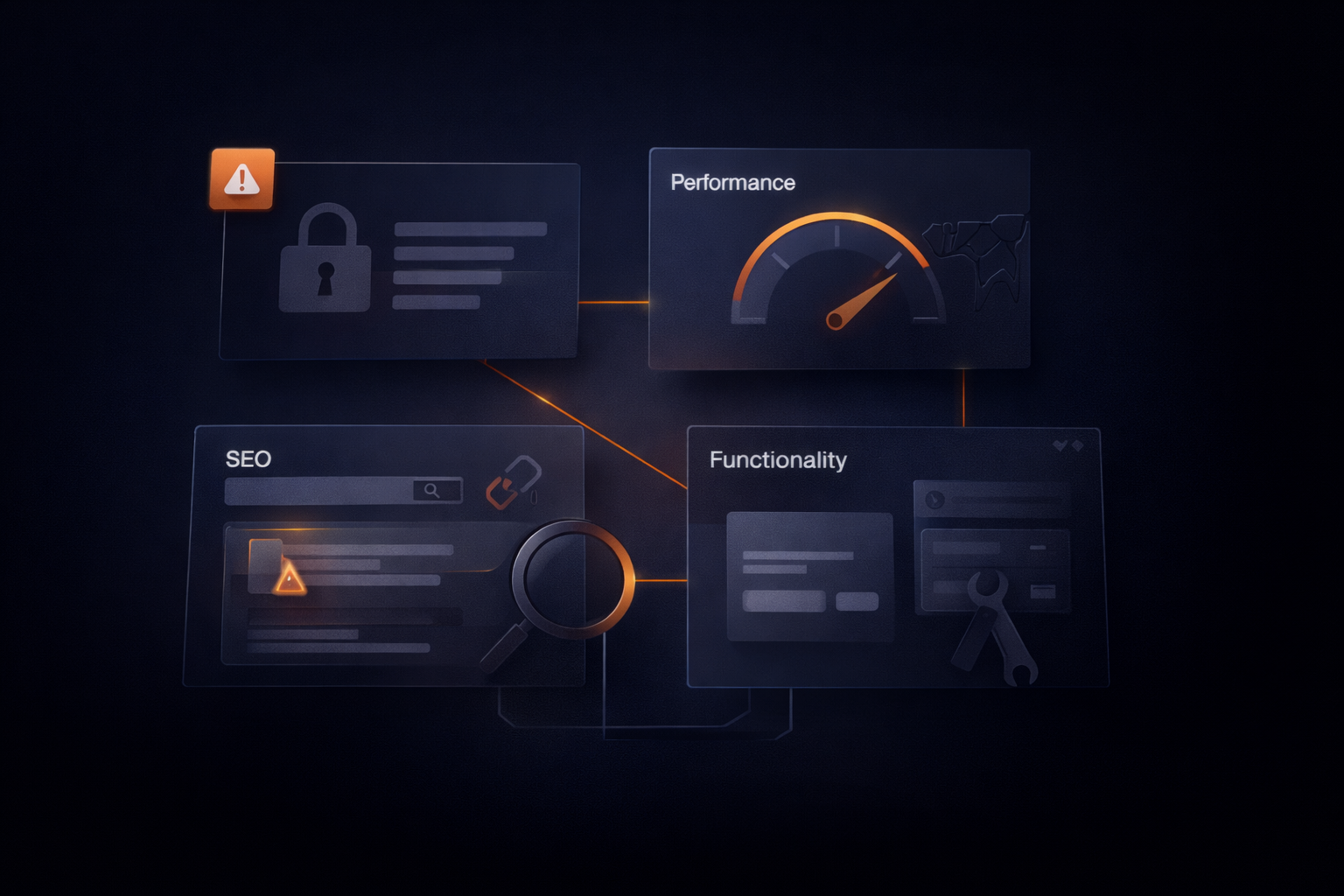
Your WordPress website isn’t “set and forget.” Regular updates are essential for security, performance, and SEO.
What Happens Without Updates
| Neglected Area | Consequence |
|---|---|
| Content | Outdated information, lower rankings |
| WordPress core | Security vulnerabilities |
| Plugins | Compatibility issues, security holes |
| Themes | Broken features, security risks |
| PHP version | Slow performance, security exposure |
Benefits of Regular Updates
| Benefit | Impact |
|---|---|
| Security | Prevents hacking (95% of hacks target outdated sites) |
| Performance | Faster loading, better user experience |
| SEO | Fresh content signals to Google |
| Features | Access to new functionality |
| Compatibility | Everything works together smoothly |
👉 Related: Website Security Monitoring Service
How to Update Blog Posts
Updating blog posts is the most common WordPress task. Here’s how to do it efficiently.
Step 1: Access Your Posts
- Log in to WordPress (yoursite.com/wp-admin)
- Click Posts in the left sidebar
- Find the post you want to edit
- Click the post title or hover and click Edit
Step 2: Make Your Edits
In the WordPress editor (Gutenberg), you can:
| Action | How To |
|---|---|
| Edit text | Click on any paragraph and type |
| Add new paragraph | Press Enter or click the + button |
| Add heading | Click +, search “Heading” |
| Add image | Click +, search “Image” |
| Add list | Click +, search “List” |
| Move blocks | Use up/down arrows on block toolbar |
| Delete blocks | Click block, then three dots → Remove |
Step 3: Update SEO Settings
If using Yoast or RankMath, scroll down to update:
- SEO title
- Meta description
- Focus keyphrase
- Readability suggestions
Step 4: Save Your Changes
| Button | What It Does |
|---|---|
| Update | Publishes changes immediately |
| Switch to Draft | Unpublishes the post |
| Preview | See changes before publishing |
Pro tip: Always click Preview before Update to check your changes.
👉 Related: Content Management & Updating Strategy 2026
How to Update Pages
Pages work similarly to posts but are used for static content like your homepage, about page, and services.
Accessing Pages
- Log in to WordPress
- Click Pages in the left sidebar
- Find and click the page to edit
Common Page Updates
| Update Type | How To |
|---|---|
| Change text | Click and type directly |
| Update contact info | Find the block, edit text |
| Change images | Click image, then Replace |
| Update pricing | Find pricing section, edit |
| Add testimonials | Add new paragraph or block |
Using Page Builders
If your site uses Elementor, Divi, or another page builder:
- Click Edit with [Builder Name]
- Click any element to edit
- Use the sidebar panel for settings
- Click Update when done
Important Pages to Keep Updated
| Page | Update Frequency |
|---|---|
| Homepage | Monthly review |
| Services/Products | When offerings change |
| About | Annually or when team changes |
| Contact | When info changes |
| Pricing | When prices change |
👉 Related: Website Design for 2026
How to Update Images and Media
Images impact both user experience and SEO.
Replacing an Image
- Click on the existing image in the editor
- Click Replace in the toolbar
- Choose Upload or Media Library
- Select your new image
Adding New Images
- Click the + button where you want the image
- Search for “Image” block
- Upload or select from Media Library
- Add alt text (important for SEO!)
Image Best Practices for 2026
| Best Practice | Why It Matters |
|---|---|
| Compress images | Faster load times |
| Use descriptive filenames | SEO benefit |
| Add alt text | Accessibility + SEO |
| Right-size images | Don’t upload 5000px for 500px display |
| Use WebP format | Smaller files, same quality |
Recommended Image Sizes
| Image Type | Recommended Size |
|---|---|
| Blog featured image | 1200 x 630px |
| In-content images | 800-1200px wide |
| Thumbnails | 300 x 300px |
| Hero/banner images | 1920 x 600-800px |
👉 Related: Website Speed Optimization Service
How to Update WordPress Core
WordPress releases regular updates for security and features. Keeping core updated is critical.
Checking for Updates
- Log in to WordPress admin
- Look for the Updates notification (red circle)
- Or go to Dashboard → Updates
Updating WordPress Core
Before updating:
- Back up your site (see backup section)
- Check plugin/theme compatibility
To update:
- Go to Dashboard → Updates
- Click Update to version X.X
- Wait for completion message
- Verify your site works correctly
Update Types
| Update Type | Risk Level | Action |
|---|---|---|
| Security patches (5.9.1 → 5.9.2) | Low | Update immediately |
| Minor updates (5.9 → 5.10) | Low-Medium | Update within a week |
| Major updates (5.x → 6.0) | Medium | Test first, update soon |
👉 Related: Technical SEO Checklist 2026
How to Update Plugins
Plugins extend WordPress functionality but need regular updates.
Viewing Plugin Updates
- Go to Dashboard → Updates or Plugins → Installed Plugins
- Yellow banner indicates updates available
- “Update available” shows under each plugin needing updates
Updating Plugins
Update one plugin:
- Go to Plugins → Installed Plugins
- Find the plugin with update available
- Click Update Now
Update all plugins:
- Go to Dashboard → Updates
- Select all plugins (checkbox)
- Click Update Plugins
Plugin Update Best Practices
| Practice | Why |
|---|---|
| Update one at a time | Easier to identify issues |
| Check site after each update | Catch problems early |
| Read changelog first | Know what’s changing |
| Keep backups | Restore if something breaks |
| Update during low traffic | Minimize impact of issues |
What If an Update Breaks Something?
- Don’t panic
- Restore from backup, or
- Deactivate the problem plugin via FTP, or
- Contact your web developer
👉 Related: Website Retainer Services 2026
How to Update Themes
Your WordPress theme controls your site’s appearance and needs updates too.
Checking Theme Updates
- Go to Appearance → Themes
- Look for “Update available” notice
- Or check Dashboard → Updates
Updating Your Theme
- Back up your site first
- Go to Appearance → Themes
- Click Update Now on your active theme
Child Theme Considerations
If you have a child theme (customizations separate from main theme):
- Update the parent theme normally
- Your child theme customizations remain intact
- This is why child themes are best practice
What If Your Theme Has No Updates?
| Situation | Action |
|---|---|
| Theme hasn’t updated in 1+ years | Consider switching themes |
| Theme developer discontinued | Plan migration to supported theme |
| Custom theme | Ensure developer maintains it |
👉 Related: Website Design for 2026
Backup Before Updates
Golden rule: Always back up before making significant changes.
Backup Options
| Method | Ease | Cost |
|---|---|---|
| Hosting backup | Easy | Often included |
| Plugin backup (UpdraftPlus) | Easy | Free-$70/year |
| Manual backup | Complex | Free |
| Managed backup service | Easiest | $10-50/month |
Quick Backup with UpdraftPlus
- Install UpdraftPlus plugin
- Go to Settings → UpdraftPlus Backups
- Click Backup Now
- Check both “Include database” and “Include files”
- Click Backup Now
What to Back Up
| Component | Why |
|---|---|
| Database | All content, settings, users |
| wp-content folder | Themes, plugins, uploads |
| wp-config.php | Site configuration |
Backup Schedule Recommendation
| Element | Frequency |
|---|---|
| Full site backup | Weekly |
| Database backup | Daily (for active sites) |
| Before major updates | Always |
👉 Related: Website Security Monitoring Service
Update Schedule Best Practices
Consistency is key. Establish a regular update schedule.
Recommended Update Schedule
| Task | Frequency |
|---|---|
| Content review | Weekly |
| Plugin updates | Weekly |
| Theme updates | When available |
| WordPress core | When available (security immediate) |
| Full site audit | Monthly |
| Content refresh | Quarterly |
Monthly Maintenance Checklist
| Task | Done? |
|---|---|
| ☐ Back up site | |
| ☐ Update WordPress core | |
| ☐ Update all plugins | |
| ☐ Update theme | |
| ☐ Check for broken links | |
| ☐ Review site speed | |
| ☐ Check security scan | |
| ☐ Review analytics | |
| ☐ Update old content |
Signs You Need Professional Help
- Updates frequently break your site
- You’re unsure what’s safe to update
- Site is slow despite updates
- You don’t have time for regular maintenance
- Security alerts are appearing
👉 Related: Website Management Cost 2026
FAQ — Update WordPress Website
How often should I update my WordPress site?
Check for updates weekly and apply them promptly. Security updates should be applied immediately. Content updates depend on your business — most companies should add or refresh content at least monthly to maintain SEO momentum.
Will updating WordPress break my site?
Updates occasionally cause issues, usually due to plugin conflicts. The risk is low if you back up first and update regularly. Sites that go months without updates face higher risk when finally updating.
Can I update WordPress myself or do I need a developer?
Most business owners can handle content updates themselves. Technical updates (core, plugins, themes) are manageable with some learning, but many prefer professional maintenance to avoid issues and save time.
What if I don’t update my WordPress site?
Outdated sites face security vulnerabilities (95% of hacked WordPress sites were outdated), slower performance, compatibility issues, and potentially lost rankings. The longer you wait, the riskier updates become.
How do I know if an update is safe?
Read the changelog before updating. Wait a few days after major releases to let others find bugs. Always backup first. Consider using a staging site to test updates before applying to your live site.
👉 Related: Mobile Optimization 2026
Need Help With WordPress Updates?
At The Clay Media, we offer WordPress maintenance services so you can focus on your business.
Our Maintenance Services:
- Weekly updates — Core, plugins, themes
- Daily backups — Never lose your work
- Security monitoring — Catch threats early
- Content updates — We make changes for you
- Performance optimization — Keep your site fast
👉 Contact Us About Maintenance Services
📞 949-444-2001 📧 Team@theclaymedia.com 📍 Orange County, CA